
Category: cPanel-WHM

  • How to Recover From the Recent cPanel Security Incident (CVE-2026-41940) and Restore an Encrypted WHM Server

    How to Recover From the Recent cPanel Security Incident (CVE-2026-41940) and Restore an Encrypted WHM Server

    The recent cPanel / WHM security issue (CVE-2026-41940) created serious problems for many server owners. In several cases, attackers were able to access vulnerable WHM servers, gain high-level privileges, and damage hosted accounts.

    Some affected users reported their website files being encrypted or renamed, similar to past ransomware-style attacks.

    One common example was:

    wp-config.php
    

    changed into:

    wp-config.php.sorry
    

    This type of .sorry extension was seen on important files, making websites stop working immediately.


    What To Do First If Your Server Is Affected

    If your WHM/cPanel server has already been attacked:

    1. Take the Server Offline or Restrict Access

    Immediately block public access to WHM/cPanel ports and SSH if suspicious activity is ongoing.

    2. Do Not Trust the Existing System

    If root access was compromised, the safest option is usually:

    • Reinstall the server OS
    • Reinstall cPanel / WHM
    • Apply all security updates
    • Change all passwords

    Best Recovery Method: Restore From External Backup

    Many people were able to recover quickly because they had backups stored outside the server.

    Examples:

    • Google Drive (GDrive)
    • Remote backup server
    • Object storage
    • NAS in another location

    If you have clean backups in Google Drive, recovery becomes much easier:

    Recovery Process

    1. Fresh reinstall the server
    2. Install cPanel / WHM again
    3. Secure the server and patch vulnerabilities
    4. Download backups from GDrive
    5. Restore cPanel accounts / website data
    6. Test websites and email services

    Why Local Backups Are Not Enough

    If backups are stored on the same compromised server, attackers may encrypt or delete them too.

    That is why offsite backups such as Google Drive can save your business.


    How to Protect Your Server Now

    Update cPanel Immediately

    Make sure your cPanel version includes the security fix.

    Use Offsite Automated Backups

    At least daily backups to:

    • Google Drive
    • Remote storage
    • Another VPS

    Restrict WHM Access

    Whitelist your IP for:

    • 2087 (WHM)
    • 2083 (cPanel)

    Use Strong Passwords + 2FA

    Especially for root, reseller, and admin accounts.


    Final Advice

    If your server was compromised, trying to “clean” it may not be enough. A full reinstallation + restore from clean Google Drive backup is often the safest and fastest route.


    Need Help With cPanel Recovery?

    I help with:

    • cPanel hacked server recovery
    • Malware cleanup
    • WHM security hardening
    • Backup restore from Google Drive
    • Server migration
    • Performance & troubleshooting

    Contact me through this website.
     

  • Critical cPanel Vulnerability (CVE-2026-41940): How I Patched My CloudLinux WHM Server and What Every Admin Should Do Now

    Critical cPanel Vulnerability (CVE-2026-41940): How I Patched My CloudLinux WHM Server and What Every Admin Should Do Now

    If you run a cPanel / WHM server, the recent security alert about CVE-2026-41940 is something you should take seriously.

    This vulnerability was rated Critical (CVSS 9.8) and affects cPanel & WHM login systems. According to public advisories, an unauthenticated attacker may gain unauthorized access to the control panel if the server is not patched.

    For hosting providers, VPS owners, and server administrators, this is a high-priority update.

    What Happened on My Server

    I manage a CloudLinux 7 + cPanel/WHM server.

    As soon as I saw the advisory, I tried to patch using:

    /scripts/upcp –force;

    But the update failed repeatedly with:

    Cannot upgrade to 11.110.0.97 until needed system packages are installed.

    That means the security patch was available, but my system environment was blocking the upgrade.

    Why This Happens on Older Servers

    Many older cPanel servers have legacy settings, outdated repo configs, package conflicts, or custom yum exclusions.

    In my case, the hidden issue was inside:

    /etc/yum.conf

    There was an old exclude= line blocking important packages such as:

    • php*
    • exim*
    • dovecot*
    • filesystem

    That prevented cPanel from installing required dependencies.

    How I Fixed It

    Step 1 – Backup yum.conf

    cp -a /etc/yum.conf /etc/yum.conf.bak

    Step 2 – Remove / comment old exclude rules

    I temporarily disabled the old package exclusion line.

    Step 3 – Run update again

    /scripts/upcp –force


    After that, the update completed normally.

    Patched Versions

    cPanel released fixed builds including:

    • 11.110.0.97
    • 11.118.0.63
    • 11.126.0.54
    • 11.130.0.19
    • 11.132.0.29
    • 11.134.0.20
    • 11.136.0.5


    How to Verify Your Server

    Run:

    /usr/local/cpanel/cpanel -V

    If your version matches the patched release or newer, you are updated.

    My Advice to Server Owners

    If your cPanel update fails, don’t assume cPanel is broken.

    Very often the real issue is:

    • old OS package settings
    • blocked yum packages
    • repo problems
    • unsupported legacy software

    Need Help With cPanel / Linux Server Issues?

    I work with:

    • cPanel / WHM
    • CloudLinux
    • AlmaLinux
    • Mail server issues
    • DNS problems
    • Security patching
    • Server migrations
    • Performance troubleshooting

    You can contact me through this website. ahmmed.com

    Source –

    https://nvd.nist.gov/vuln/detail/CVE-2026-41940

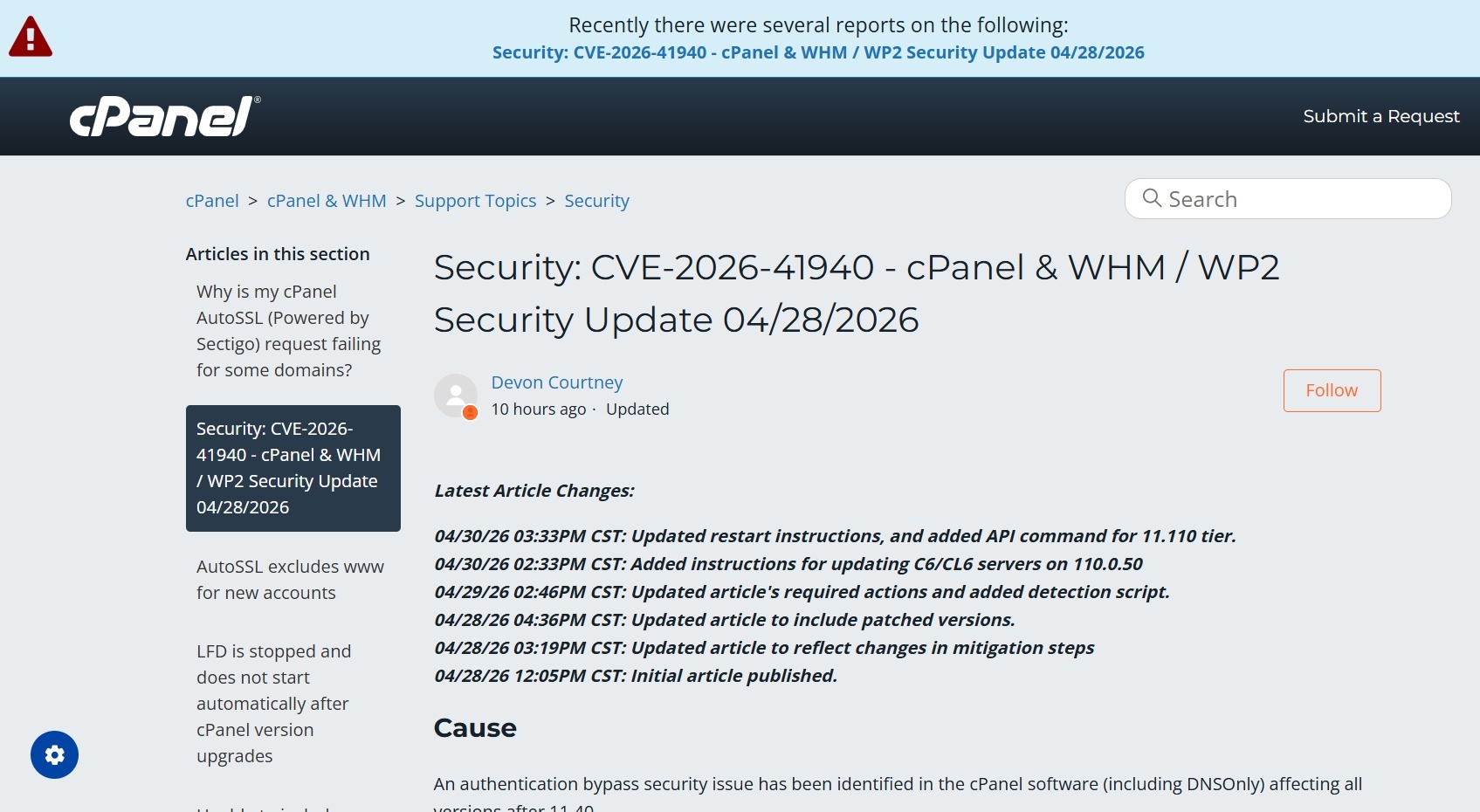
    https://support.cpanel.net/hc/en-us/articles/40073787579671-Security-CVE-2026-41940-cPanel-WHM-WP2-Security-Update-04-28-2026